Time and money
View as MarkdownTime tracking
Start a timer on a task, log time by hand, fix your entries and review them on the Time page.
Stepino records the time you spend on tasks. You can run a live timer while you work or add time afterwards. Every entry belongs to a project, usually to a task, and can carry a note, tags and a billable flag.
Start and stop the timer
From a task
- In the task list and on the board, hover a task and click the play button (Start timer). Click it again to stop.
- In the task panel, use the play button in the toolbar. Next to it, the Time entries button shows the time tracked on the task so far.
- On the full task page, the dark card on the right shows Time on this task with a Start or Stop button.
- Subtasks have their own play button in the subtask list.
From the top bar
The timer button sits in the top bar on every page. When nothing runs, it says No timer.
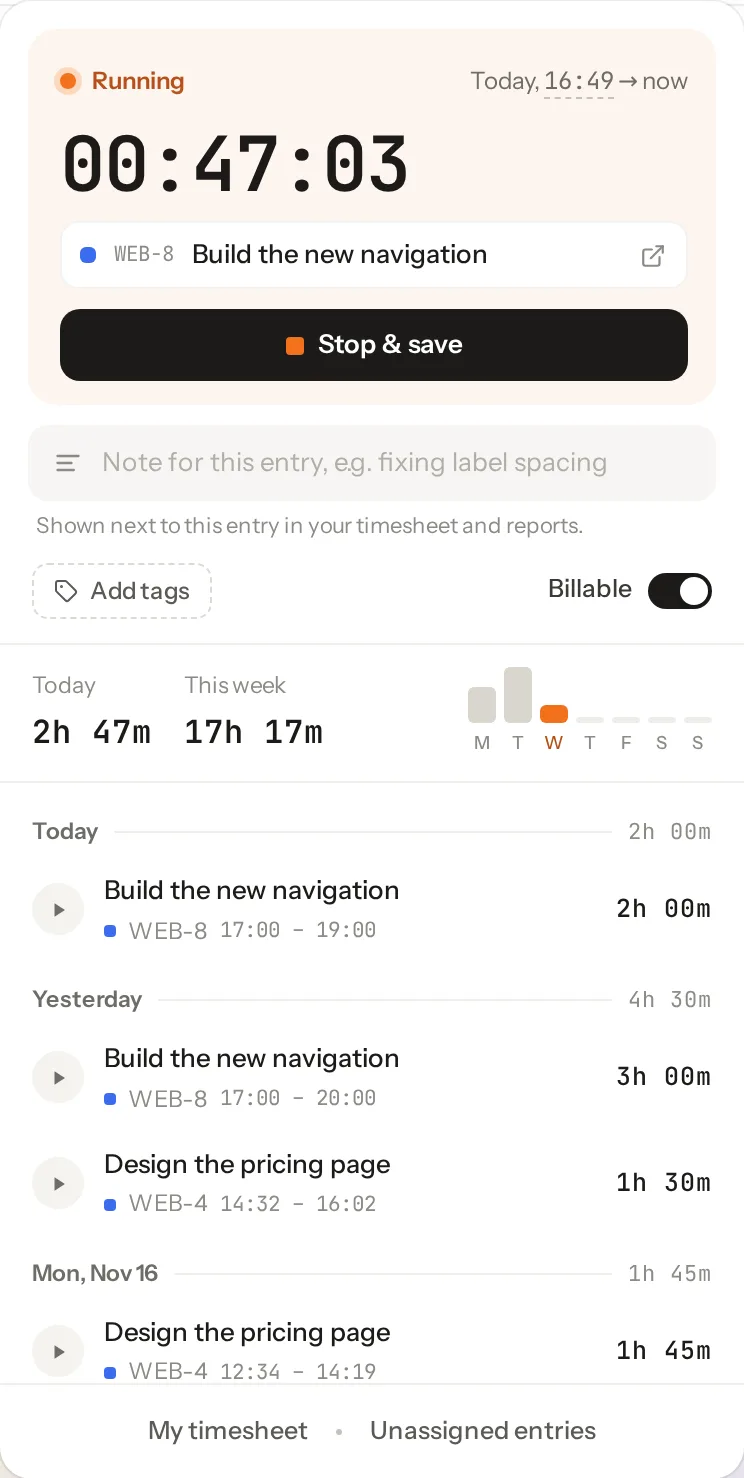
- Open a project, then click No timer.
- Under Start tracking, pick one of your Recent tasks, search for a task, or just type a note.
- Click Start or press
Enter.
If you type a note that matches no task, the timer starts without a task and keeps your text as its note. You can attach the task later.
The popover also shows your totals for Today and This week and your recent entries in the open project. The play button next to an entry starts a new timer on the same task.
From the dashboard
In the My focus card on the dashboard, hover a task and click Start timer.
One timer at a time
You can only have one running timer. Starting a new one stops the running one and saves it. While a timer runs, the top bar shows the task and the elapsed time, and the browser tab shows the elapsed time in its title.
If a timer has been running for 8 hours, Stepino sends you one e-mail reminder, in case you forgot to stop it. The timer keeps running until you stop it.
AI agents are the exception. An agent connected over MCP tracks its work under its own name and can run one timer per task, several at once. Its timers never stop yours, and an agent's timer stops on its own after 8 hours. See AI agents.
Every window shows the same timer
Your timer is the same wherever you're signed in. Start, change or stop it in one window and every other window and device you have open follows within a moment, without a reload. That includes a timer you start or stop over MCP with your own token. An agent's timers never show up as yours.
Adjust a running timer
Click the running timer in the top bar to open it. You can:
- Click the start time to change when you started (it can't be in the future).
- Click the big elapsed time and type a new duration as
hh:mm:ss, then pressEnter. - Pick a task if the timer has none.
- Add a Note for this entry. It appears next to the entry on your timesheet and in reports.
- Add tags and switch Billable on or off. New timers start as billable.
- Click Stop & save to finish. The small stop button on the timer itself does the same.
Log time manually
Forgot to start the timer? Add the time afterwards.
On the Time page:
- Click Log time.
- Choose a Task (optional), the Date, Start and End.
- Add a Note and Tags if you like, and set Billable.
- Click Log time.
The end time must be after the start time.
On a task: open the task's Time entries panel and click Log time. The task is already filled in. Instead of an end time you can type a Duration, such as 1:30 or 1.5 for an hour and a half.
Edit and delete entries
You can change and delete only your own entries. Nobody else can change them, including project owners and team admins. The one exception is the time of an AI agent, see Fix an agent's time.
On the Time page, hover one of your entries:
- Edit opens Edit time entry, where you can change the task, start and end, duration, description, billable flag and tags.
- Resume starts a new timer on the same task.
- Delete removes the entry after you confirm.
- The € button switches the entry between billable and non-billable.
- + Tag adds or removes tags.
An entry without a task shows No task — assign. Click it to pick the task.
In a task's Time entries panel, click one of your entries to edit it right there, or delete it with Delete. A running timer can't be edited there; adjust it from the top bar.
Editing an entry doesn't change the rates it was recorded with. See Rates and budgets.
Fix an agent's time
The time an AI agent tracks belongs to the agent, which can't sign in to correct it. So these people can edit and delete its entries the same way as their own, with Edit, Delete, the € button and + Tag:
- The person behind the agent. That is the person who created its project token, or the person whose personal token ran it with
as_agent. They keep this right while they are still a member of the project. - People who manage the project: its owners and the owners and admins of its team.
Agent entries tracked before this change have no person behind them, because nothing recorded who started them, so only people who manage the project can change those. Other project members can't change an agent's time, and nobody can change another person's time this way.
The person behind an agent sees its entries on their Time page and in the task's Time entries panel, marked with the agent's name and without rates.
The Time page
Open a project and click Time in the sidebar. You can also click My timesheet in the timer popover, or Details on the My time this week card of the dashboard. The page shows the time of the open project, grouped by day, for This month unless you pick another period.
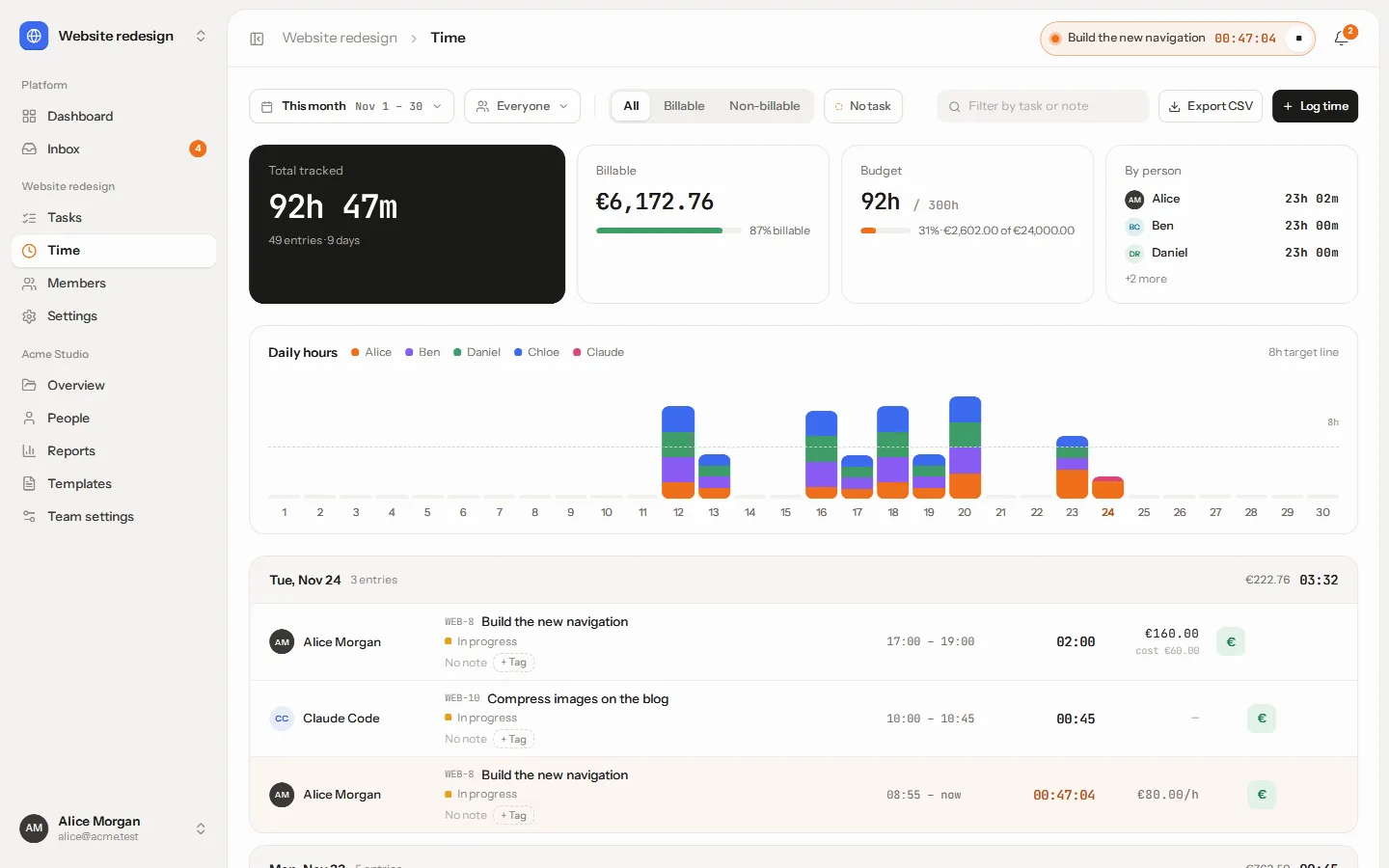
Filters along the top:
- Period: This week, Last week, This month, Last month, Last 30 days or a custom range.
- Everyone or one person (only for people who manage the project).
- All, Billable or Non-billable.
- No task: entries that still need a task. The Unassigned entries link in the timer popover opens the same view.
- Tags, and a search box to Filter by task or note.
Below the filters you see the total tracked time, the billable amount and share, the time By person, and a chart of hours per day. People who manage the project also see the Budget tile.
Export CSV downloads the project's entries for the selected period, person and tags. For more ways to slice your time, use Reports.
Time entries have their own tags, separate from task tags. Any project member can create them from the tag picker.
Time zone
Stepino shows and records every time in your time zone, whatever time zone your device uses. It sets the clock times of the timer, of your entries and of the times you type, and where a day, a week or a month begins and ends: the days of the Time page and of Reports, Today and This week on the dashboard and in the Inbox, the period presets such as This week and Last month, the calendar's Today and when a task counts as overdue. Change it in Settings › Profile. Stepino picks your browser's time zone when you sign up. Accounts that existed before started on Central European Time (Bratislava), so nothing changes for them until they pick another one.
A teammate in another time zone sees the same entry at their own clock time. Close to midnight that can be another day: an entry that starts at 23:30 for you is on the next day for a teammate three hours ahead, so the same week or month can total differently for the two of you. Stepino counts the days of whoever is looking. Where the clocks change, a day is 23 or 25 hours long. Dates in lists, such as when a token was created or when someone joined, are your days too.
Exports follow the same rule: the Date column of Export CSV has the days of your time zone, so someone in another time zone can get a different date for an entry tracked close to midnight.
The e-mails Stepino sends on a schedule follow your time zone too. The weekly summary reaches you on Monday morning where you are, and the digest and reminders at the hours listed under E-mails, so a teammate in New York gets the weekly summary at 9:00 New York time, not in the middle of their night.
Who sees whose time
| Project members | People who manage the project | |
|---|---|---|
| Time page | Your own entries, and those of agents you are behind | Everyone's entries, rates and budget |
| A task's time | Your own time, and that of agents you are behind | Everyone's time, including timers running right now, with a Mine and Everyone switch |
| Amounts | Based on your own rate | Based on the bill rate |
| Reports | Your own time in all your teams | The whole team's time |
People who manage a project are its owners and the owners and admins of its team. A team owner or admin who hasn't joined a project can't open its Time page but sees its time in Reports. See Roles and permissions and who sees money.