Account
View as MarkdownAccount settings
Manage your profile, password, passkeys, two-factor authentication, signed-in browsers, theme, teams, notifications, shortcuts and access tokens.
Your account settings apply to you, in every team you're in. To open them, open your account menu at the bottom of the sidebar and choose Settings. The settings menu has these pages: Profile, Security, Appearance, Teams, Notifications, Shortcuts, API Tokens and MCP Tokens.
Profile
Your name, e-mail, photo and time zone. Teammates see your name, e-mail and photo on tasks, comments and time entries.
Photo
Click Change avatar and pick an image (JPG, PNG or GIF, up to 2 MB). To go back to your initials, click Remove.
Name and e-mail
- Under Personal information, change your Name or Email address.
- If you change your e-mail, enter your Current password too.
- Click Save changes.
Your e-mail address is what you sign in with, and where Stepino sends e-mails. When you change it, Stepino sends a verification link to the new address.
Time zone
Your time zone decides the clock times Stepino shows you and where a day or a week begins: the timer, your entries, the times you type, the Time page, Reports, Today and This week and when a task is overdue. See Time zone. Stepino picks your browser's time zone when you sign up. To change it:
- Under Personal information, open Time zone and type a city or region, such as "Tokyo". You can also search by offset, such as "+09:00".
- Pick the time zone from the list. When your browser is in a different one, Use next to the label selects it for you.
- Click Save changes.
The setting is yours alone. A teammate in another time zone sees the same entry at their own clock time. Accounts that existed before time zones started on Central European Time (Bratislava).
Delete your account
Under Danger zone, click Delete account and enter your password to confirm. This removes your name, e-mail, photo and sign-in for good, and deletes projects that only you work on. Your tasks, comments and time stay in shared projects and show as "Deleted user". Your emoji reactions on comments are removed.
If you're the only owner of a team that has other people in it, you need to hand it over first. The same goes for your personal team when other people are in it. AI agents and placeholders don't count as people here. The page names the team and links to its settings, where you can transfer ownership.
Security
Change your password
- Enter your Current password.
- Enter a New password and repeat it in Confirm password.
- Click Save password.
Changing or resetting your password signs you out in every other browser and device. You stay signed in where you made the change.
Forgot your password? Sign out and click Forgot password? on the login page.
Passkeys
A passkey lets you sign in with Face ID, Touch ID, Windows Hello, your phone's screen lock or a security key instead of typing your password. Your device or password manager keeps it, so there is nothing to remember and nothing a fake login page can steal. Your password keeps working alongside it.
To add a passkey:
- Open the device and browser you want to sign in from.
- Under Passkeys, check the name, such as "MacBook" or "Work phone", and click Add passkey. Stepino may ask for your password first.
- Confirm with your face, fingerprint, PIN or security key.
Add one on each device you sign in from. A passkey saved in iCloud Keychain, Google Password Manager or another password manager also works on your other devices that use it.
To sign in with a passkey, click Log in with a passkey on the login page, or pick your passkey when your browser offers it in the Email address field. A passkey sign-in doesn't ask for your two-factor code, because the passkey already needs your device and your face, fingerprint or PIN. When Stepino asks you to confirm your password, you can click Confirm with a passkey instead.
The list shows where each passkey is kept and when you last used it. To stop using one, click Remove and confirm. Then delete it from your device or password manager too, so it stops offering it.
Passkeys work in current browsers on the secure Stepino address (HTTPS). If a browser can't use them, Stepino doesn't offer them there.
Active sessions
Active sessions, at the bottom of the page, lists every browser where you're signed in. For each one it shows the browser and system, the IP address of its last visit and when it was last active. The browser you're using now is marked This browser.
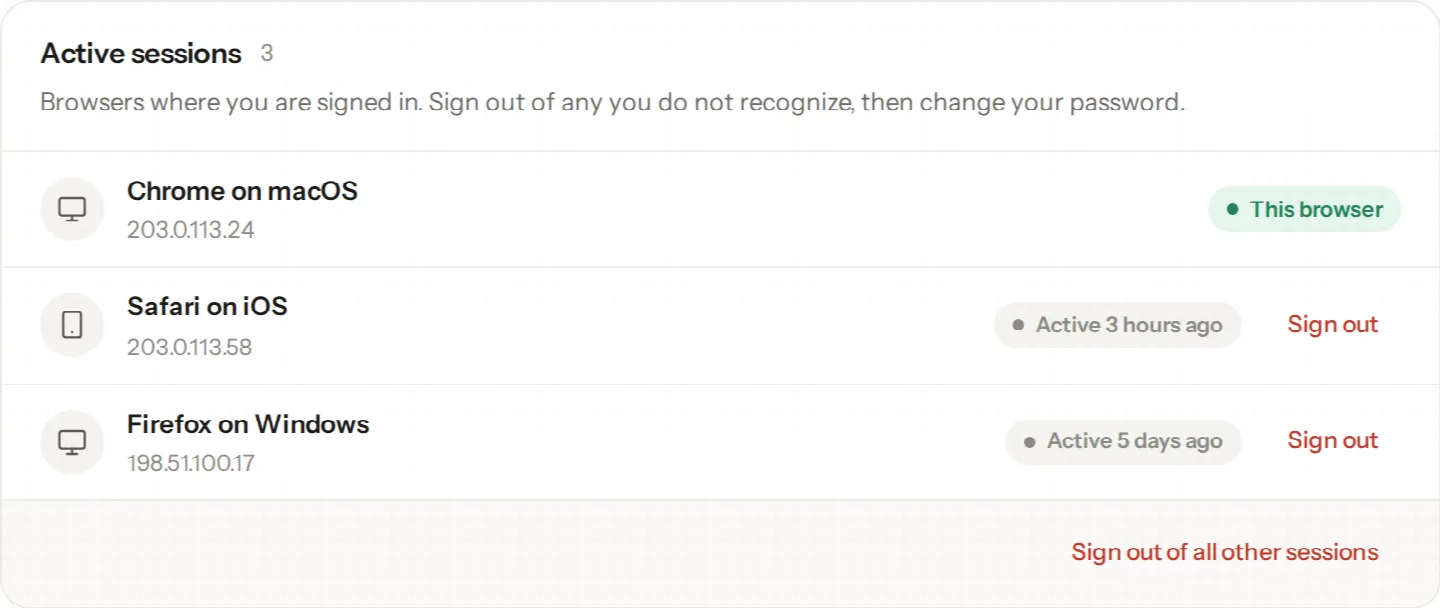
To sign out of a browser you don't recognize:
- Click Sign out next to it and confirm. That browser has to sign in again.
- Change your password, in case someone else knows it.
Sign out of all other sessions ends every session except this one. Stepino may ask for your password, or for a passkey, before it signs anyone out.
Signing out of other browsers also turns off Remember me on all your browsers. They stay signed in until their session runs out, then you sign in again.
E-mail about a new sign-in
When someone signs in to your account from a browser Stepino hasn't seen with your account before, Stepino sends you an e-mail. It names the browser and system and the time, and doesn't show an IP address. It's there so you notice when someone else signs in with your password.
- If it was you, there is nothing to do.
- If it wasn't you, click This wasn't me. Sign in, then change your password and sign out of every session you don't recognize under Active sessions. If you can no longer sign in, reset your password from the login page.
Your first sign-in doesn't send this e-mail, and neither does a browser you've signed in on before. Clearing your cookies or using a private window makes a browser new again. You can't turn this e-mail off, because it's about the security of your account.
Two-factor authentication
Two-factor authentication asks for a code from an authenticator app on your phone each time you sign in.
- Under Two-factor authentication, click Enable 2FA. Stepino may ask for your password first.
- Scan the QR code with your authenticator app, or enter the setup key by hand. Click Continue.
- Enter the 6-digit code from the app and click Confirm.
Once it's on, click View recovery codes and store them somewhere safe, such as a password manager. A recovery code lets you sign in if you lose your phone. Regenerate codes replaces them with new ones. To turn two-factor authentication off, click Disable 2FA.
When your team requires it
An owner or admin can require two-factor authentication for a team. If you're in such a team and have neither two-factor authentication nor a passkey, Stepino sends you to Settings › Security the next time you open it. Stepino may ask for your password first. A banner names the team that asks.
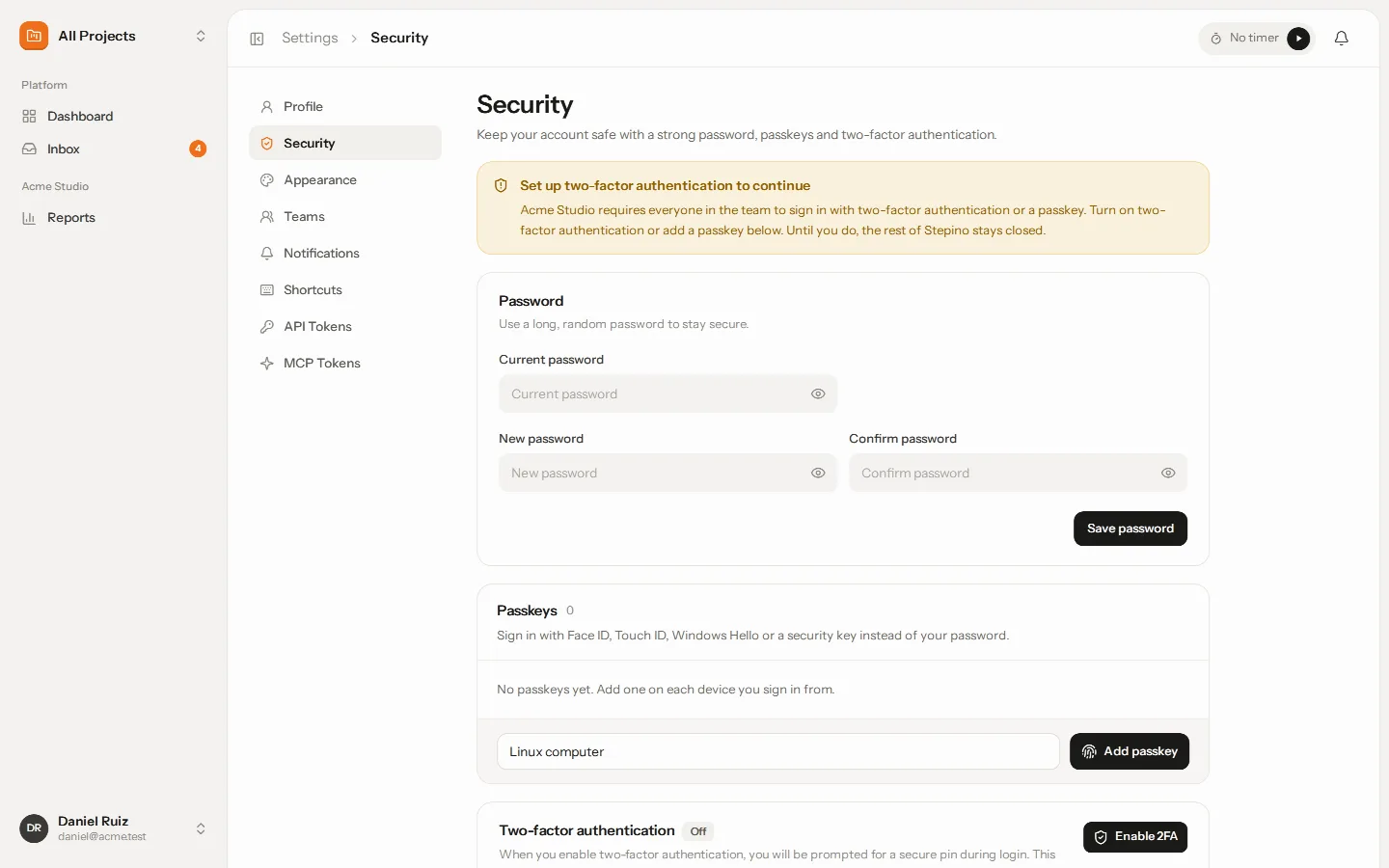
Either turn on two-factor authentication or add a passkey, as described above. As soon as one is set up, you can use Stepino as before. Until then you can only reach this page, sign out and read the website and these docs.
While a team requires it, you can't remove your last second factor: you can turn two-factor authentication off only while you keep a passkey, and remove a passkey only while you keep another one or two-factor authentication. When Stepino refuses, it tells you which team asks. If you want to remove it anyway, ask an owner or admin of that team to switch the requirement off.
Appearance
Choose a theme: Light, Dark, or System to follow your device. The change applies right away and is remembered in this browser, so you can use a different theme on each device.
Teams
This page lists every team you're in, with your role in each. Your personal team is marked "your personal team".
- Team settings opens the settings of a team you own or run as an admin.
- Leave takes you out of a team and all of its projects, after you confirm.
You can't leave your personal team. If you're a team's last owner, transfer it before you leave. See Teams.
Notifications
Notifications appear under the bell in the top bar. See Dashboard and inbox. On this page you choose which ones you get. All of them are on until you turn them off.
- Do Not Disturb hides the notification badge. Notifications are still saved, so you can read them later.
- Tasks: Task assigned, Task completed, Task moved, Assignee changed, Due date changed, Priority changed and Subtask added. These cover tasks you're assigned to or follow.
- Comments & files: New comment, Comment reply, Mentioned and New attachment.
Flip the switches you want, then click Save preferences.
E-mails
Stepino also sends a few e-mails on its own. They're separate from the notifications above: those switches only control notifications in the app. Under E-mails you choose which of these e-mails you get. They arrive at the times below in your own time zone: 9:00 is 9:00 where you are, and "Monday" or "the 1st" is your Monday or your 1st. Stepino sends each one within a quarter of an hour of that time.
- Notification digest: your unread notifications in one e-mail. Choose Off, Daily (every day at 8:00) or Weekly (every Monday at 8:00). It's Off until you pick one.
- Overdue tasks, every day except Monday at 9:00: open tasks assigned to you whose due date has passed.
- Weekly summary, every Monday at 9:00: the time you tracked last week and your open tasks. It's skipped when there's nothing to report.
- Monthly report, on the 1st at 8:00: your time and your team's time for the month before.
- Timer still running, once, when a timer has been running for 8 hours. See Time tracking.
Except for the digest, all of them are on until you turn them off. Flip the switches you want, then click Save preferences.
When you change your time zone, the next e-mail comes at the new time. You get each e-mail once per day, week or month, even on the day the clocks change.
When a team turns on Private e-mails, these e-mails show only how many things there are in that team and a link, with no task titles, project names or people, whatever you chose here.
Unsubscribe from an e-mail
Every one of these e-mails ends with an Unsubscribe from … link, for example Unsubscribe from weekly summaries.
- Click the link. It opens a page that asks you to confirm, and nothing changes yet.
- Click Unsubscribe. You stop getting that one e-mail, and only that one.
The link works without signing in, so you can use it on any device. It switches off the e-mail for you alone, never for anyone else, and it doesn't expire. Mail apps that show their own unsubscribe button, such as Gmail, use the same switch. You can turn the e-mail back on any time under Settings › Notifications.
E-mails you can't turn off
Some e-mails belong to something you did or keep your account safe, so they're always sent and have no Unsubscribe link:
- Verifying your e-mail address and resetting your password.
- Invitations to a team or a project, and the welcome e-mail with the link to set your password.
- You've been added to a project: Stepino tells you once that someone gave you access to a project and its data. It's not a recurring message, and you shouldn't be able to miss a change to what you can see.
- A warning that one of your API or MCP tokens is about to expire. See Token expiry.
- The e-mail about a new sign-in, which tells you someone signed in to your account from a browser Stepino hasn't seen before.
Shortcuts
Single keys for the things you do most in an open task, such as P for the priority. See Keyboard shortcuts for the full list. Your keys are yours alone and follow you to every device.
- Task shortcuts turns all of them on or off.
- To change a key, click it under In an open task and press the new letter or digit.
Backspaceleaves the action without a key,Esckeeps the old one. - A key can do only one thing.
J,K,EandOare taken by the Inbox. - Reset to defaults brings back the original keys.
Click Save shortcuts when you're done.
API Tokens
API tokens connect the Stepino Chrome extension to your account. Enter a name for the token, for example "Work laptop", choose when it expires under Expires (30 days, 90 days or No expiry, with 90 days preselected) and click Generate token. Copy the token right away, because Stepino shows it only once.
A token stops working when it expires, and when it isn't used for 90 days. Stepino emails you a week before a token expires, at 8:00 in your time zone. The list shows when each token expires, when it was last used and from where, by IP address and browser. To cut off a device, click Revoke next to its token. See Chrome extension.
MCP Tokens
MCP tokens connect an AI agent, such as Claude, Codex or Cursor, to the projects you belong to. When you generate a token, choose All my teams or a single team, when it expires under Expires, and its Access: Read and write, or Read-only for an agent that should only look. An agent using your token works as you, with your access.
A token stops working when it expires, and when it isn't used for 90 days. Revoke cuts it off right away. The list shows when each token expires, whether it is read-only, and when and from where it was last used. See Token expiry and Read-only tokens. To connect an agent to a single project instead, use the project's Settings › AI agents (MCP). See AI agents.