Tasks
View as MarkdownComments and files
Discuss a task in comments, reply and mention teammates, attach files and images, and read the task's activity history.
Each task has its own conversation, its own files and a history of what changed. You'll find all three in the task's side panel and on its full page.
Comments
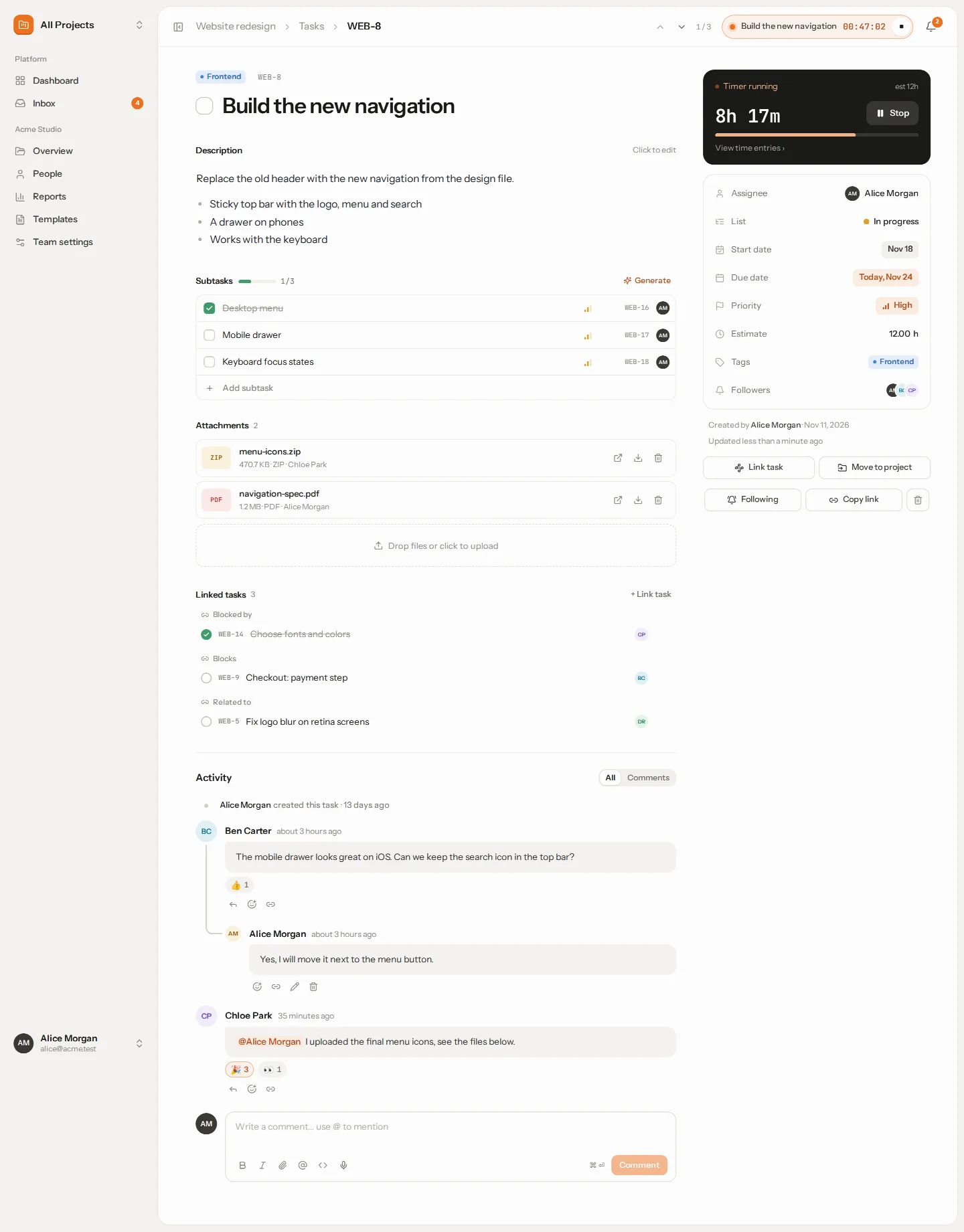
Write a comment
The comment box sits at the bottom of the task. Click Write a comment…, type, and send it with the send button, Comment on the task page, or ⌘ Enter (Ctrl Enter on Windows).
Comments support the same formatting as descriptions. The buttons under the box let you:
- Make text bold or italic (on the task page).
- Attach files to the comment. See Files.
- Mention someone.
- Format text as Code.
You can also type / to insert headings, lists, quotes and more. Anyone on the project can comment.
Comments and files from teammates show up in the open task without a reload. See Changes from teammates.
The actions under a comment are small icons: Reply, Add reaction, Copy link, and on your own comments Edit and Delete. Hover an icon to see its name.
Reply to a comment
- Click the Reply arrow under a comment. The cursor moves to the comment box, so you can start typing right away.
- Write your answer. A bar above the box shows who you're replying to. Click its × to cancel.
- Send it.
Replies appear indented under the original comment, on a line that runs down from its author's picture, so you can see at a glance which comment they answer. The author of the original comment gets a notification. Replies go one level deep. To answer a reply, reply to the original comment. If the original comment is deleted while you're writing, your reply is posted as a regular comment.
React to a comment
Say "thanks" or "seen it" without writing a comment.
- Click the smiley next to Reply under the comment.
- Pick one of the emoji: 👍 ❤️ 😄 🎉 👀 ✅.
The emoji appears under the comment with a count. Click it to add your own reaction, and click it again to take yours back. Hover an emoji to see who used it, and yours is highlighted. You can use each emoji once per comment.
Anyone who can open the task can react, to their own comments too. Reactions don't send a notification and don't show in the task's history. Teammates with the task open see them without a reload.
Link to a comment
- Click the link icon next to Reply under the comment. A message says Link copied.
- Paste the link in a message, a commit or another task.
Opening the link takes you to the task, scrolls to that comment, even a reply, and highlights it for a moment. Whoever opens it needs access to the project. The link names the task by its number, so it opens the same task for everyone, even for people who are in two teams that use the same task prefix.
Mention someone
Type @, or click Mention someone, and pick a person from the project. They get a notification and start following the task, so they'll hear about later changes too. If you add a mention when you edit a comment, the newly mentioned person is notified as well.
The @ menu also lists the task's files. Pick one to put a link to it in your comment.
Edit or delete a comment
You can edit and delete your own comments. You can't change anyone else's.
- To edit, click the pencil (Edit) under your comment, make your changes, and click Save. Press
⌘ Enterto save from the keyboard. - To delete, click the trash can (Delete) and confirm.
Drafts
If you start a comment and leave the task, Stepino keeps the text in this browser. Open the task again and your draft is still in the box. It's cleared once you send the comment.
Files
Attach files
There are several ways to add a file to a task:
- In the side panel: click + Upload next to Attachments, or drop files anywhere on the panel.
- On the task page: click Drop files or click to upload, or drop files onto it.
- In a comment or the description: paste or drop a file into the text, or click Attach files under the comment box. In any text box, you can also type
/and choose Image or File.
While a file uploads, a strip under the panel's header shows its name, or how many files are on their way. A file you drop or paste into a comment or the description shows Uploading and its name at the spot where it will appear, so you can keep typing around it.
Each file can be up to 10 MB. A project can hold up to 2 GB of files in total. If a project is full, delete files you no longer need.
People who follow the task get a notification when you attach a file.
Files in the text
When you add a file through a comment or the description, it also appears in the text:
- An image appears in the text itself.
- Any other file appears as a chip with its name. Click the chip to open the file.
Either way, the file also lands in the task's Attachments list.
Open, download and delete
The Attachments list shows each file's name, size, type and who uploaded it. Images get a small preview.
- Open: click the file's name, or Open in new tab. Images and PDFs open in your browser. Other files, and SVG images, download instead.
- Download: click Download to save the file.
- Delete: click Delete and confirm. Only the person who uploaded a file can delete it.
Deleting a task also deletes its files.
Use an image as the cover of a task
A task can show one of its images on its card on the board. This is optional, and nothing becomes a cover unless you choose it.
- Open the task and find the image in Attachments.
- Click … on its row and choose Set as cover.
The row now says Cover, and the card shows the picture above its title. To change the cover, choose Set as cover on another image. To take it off, click … on the cover's row and choose Remove cover.
Anyone on the project can set or remove a cover. Only JPEG, PNG, GIF and WebP images can be covers, not SVG images. The … menu doesn't appear for other files or on subtasks, because a subtask isn't a card on the board. An animated GIF shows its first frame. If you delete the cover image, the card goes back to having no cover. See Covers to hide covers on the board.
Activity
The Activity section of a task shows its comments together with a history of changes, oldest first. The newest entries sit right above the comment box. Switch between All and Comments to hide the history and read only the conversation.
The history shows who did what, and when:
- Who created the task.
- When it was marked as done or reopened.
- Who was assigned or unassigned.
- Moves to another list or another project.
- Changes to the priority, due date and estimate.
Hover the time of an entry to see the exact date. Edits to the title, description and tags aren't listed in the history.
For notifications about these changes, see Dashboard and Inbox.